The player could not load. Watch it on YouTube instead.
Moving the Photos library to an external drive without breaking it
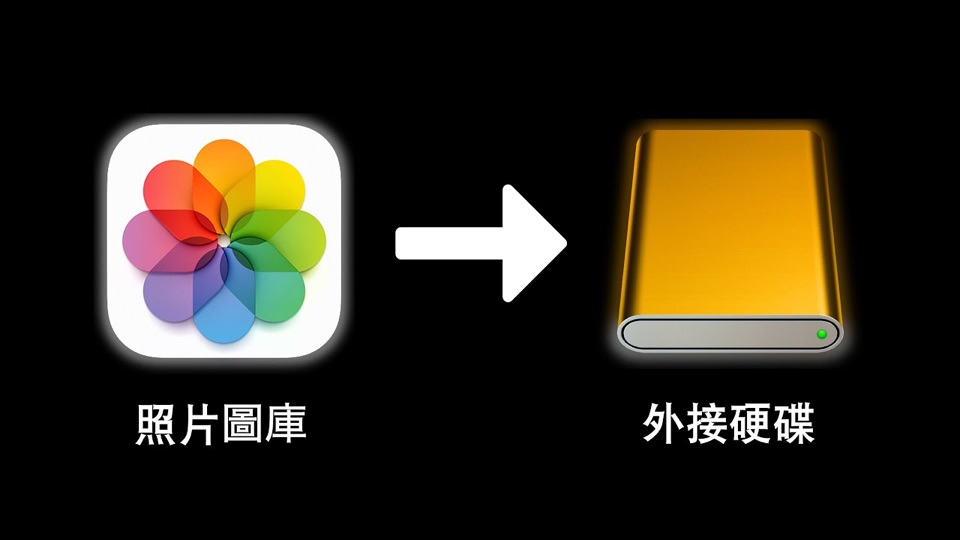
Mac 照片圖庫 移到外接硬碟【快速搞定】
About this video
Four minutes to move a 200 GB Photos library onto an external drive and keep using it as if nothing changed. The method is the one that actually works: format the drive first, copy the library package across, then tell Photos which library to open by holding Option at launch. It closes with the one failure everyone hits afterwards — Photos saying it cannot find the library — and the fix, which is that the drive is not plugged in.
This is the cheapest large win in Mac storage management, and the video is worth watching because of two details that a written instruction tends to omit.
The first is that the library is a package, not a folder of images. Right-click
it, choose Show Package Contents, and the files are inside Originals. That
matters because it explains why the library has to be copied whole: pulling
individual photos out of it, or merging two libraries by dragging files together,
is how people lose their edits and their album structure. The video moves the
package intact and says nothing about merging, which is the right call.
The second is the format question at 1:30. The creator reaches for Disk Utility, erases the drive, and then explains the choice the way Apple’s own documentation does — APFS for an SSD, Mac OS Extended (Journaled) for a spinning disk — and notes that his own drive is mechanical, so he cannot use APFS. That is correct and it is the step most people get wrong by keeping whatever the drive shipped with, which is usually exFAT.
The switch itself is at 2:35: quit Photos, hold Option, click the Photos icon, and pick the library on the external drive. From then on Photos opens that library, and the old one is dead weight — which is why the video deletes it only after the new one has opened and shown the photos. The closing section is the one that will matter six months later: if Photos says it cannot find the library, the drive is not plugged in, and Retry is the whole fix.
Recorded in October 2022. The Disk Utility and Photos interfaces have changed since, but nothing about the method has. If the goal is to back the library up rather than relocate it, backing up iCloud Photos to a drive is the longer and more cautious companion.
What it covers
- That the Photos library is a single package, and the actual image files are in its Originals folder
- That Preferences shows the library's path, and Show in Finder opens it
- That the destination drive must be erased first, which deletes whatever is on it
- That the format choice follows the drive: APFS for an SSD, Mac OS Extended (Journaled) for a spinning disk
- That Photos is told which library to open by holding Option while launching it
- That the old library should only be deleted once the new one has opened successfully
- That a missing-library warning at launch usually means the external drive is not connected
Chapters
No chapter list is published with this video. Times come from its Chinese subtitle track, so each one is where that step is described.
Apps in this video
No app page is linked. Everything here is Apple's own software — the Photos app and Disk Utility — so no third-party app is its subject and none is claimed.