Review
Vista Player on Mac: 4K HDR, MKV without transcoding, dual subtitles
顺意科技 · 6:15 · Oct 27, 2026
WatchDiscover apps, utilities and tools for productivity, development, design, file management, security and everyday macOS workflows — organized by category and kept up to date.
What FileVault actually protects on a modern Mac, how to turn it on without locking yourself out, where the recovery key goes, and the things people assume it covers and it does not.
How to read the signal numbers macOS already shows you, the six fixes that resolve most Wi-Fi faults, and how to tell a Mac problem from a router problem before you change anything.
What each Mac can actually drive, why the cable is usually the problem, how macOS arranges and scales displays, and how to get brightness and window layout under control across two or three screens.
A diagnostic order for a Mac that has become slow: what to measure first, the seven causes that account for almost every case, and the fixes that actually change the numbers.
Migration Assistant, a direct cable, a Time Machine backup or a clean manual copy — which route to take, what each one leaves behind, and the permissions and licences you have to re-establish afterwards.
Every way macOS can produce a character that is not on the keyboard: the hold-a-key accent menu, the Option combinations worth memorising, the Character Viewer, text replacement, and what to do when Option produces the wrong symbol.
A practical path to driving macOS from the keyboard alone: the setting that makes it possible, the shortcuts that replace pointing, and the apps that fill the gaps for window management, launching and text.
A panic is the kernel deciding it can no longer guarantee correctness and stopping the machine. What the log actually says, the five causes in order of frequency, and how to tell a panic from a hang, a crash and a sleep failure.
Apple File System replaced HFS+ in 2017. What copy-on-write, snapshots, clones and containers actually mean for your disk, why free space is shared, and where APFS stops being readable at all.
Homebrew is the package manager most Mac developers install first. What formulae and casks actually are, where it puts everything, what it trusts, and whether you need it if you never open Terminal.
Why macOS reports memory pressure instead of free memory, what the four numbers in Activity Monitor actually measure, when swap is normal, and how to tell a memory problem from a CPU or disk problem.
SIP is the layer that stops anything — including root — from modifying macOS itself. What it protects, what it restricts, why the sealed system volume changed the rules in macOS 11, and when disabling it is legitimate.
A six-and-a-half-minute roundup of four Mac apps, plus a fifth added at the end. The creator's description says all of them are free and open source, and points viewers at his own software index rather than listing the apps in the description — so the video is the only place the list exists.
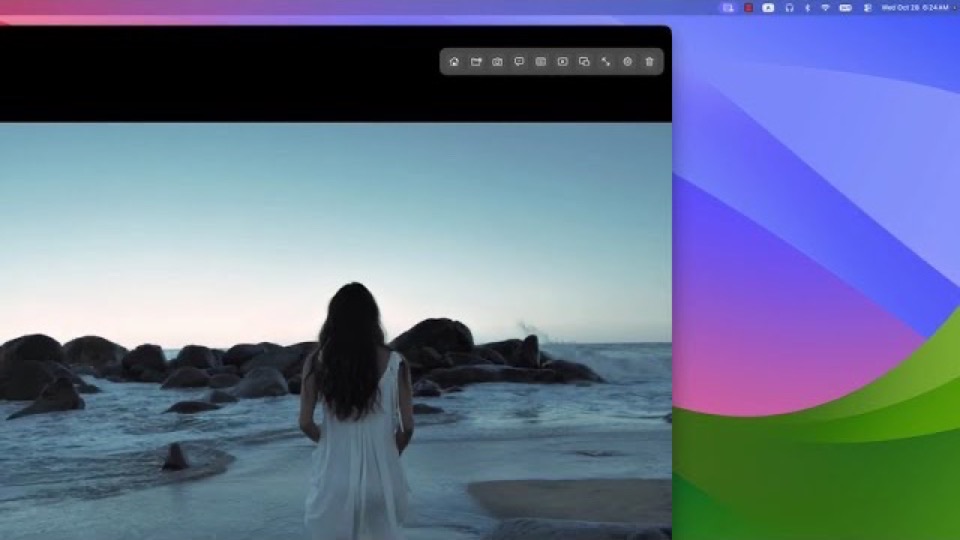
A six-minute walkthrough of Vista Player, a local video player for macOS. It opens MKV, MP4, AVI, WebM, MOV, TS and FLV files, plays 4K HDR with hardware decoding, and shows two subtitle tracks at once. The demonstration moves from a 4K clip through an MKV with several audio tracks to a dual-subtitle setup for language learning, then covers the equaliser and the screenshot tools a creator uses to check footage.
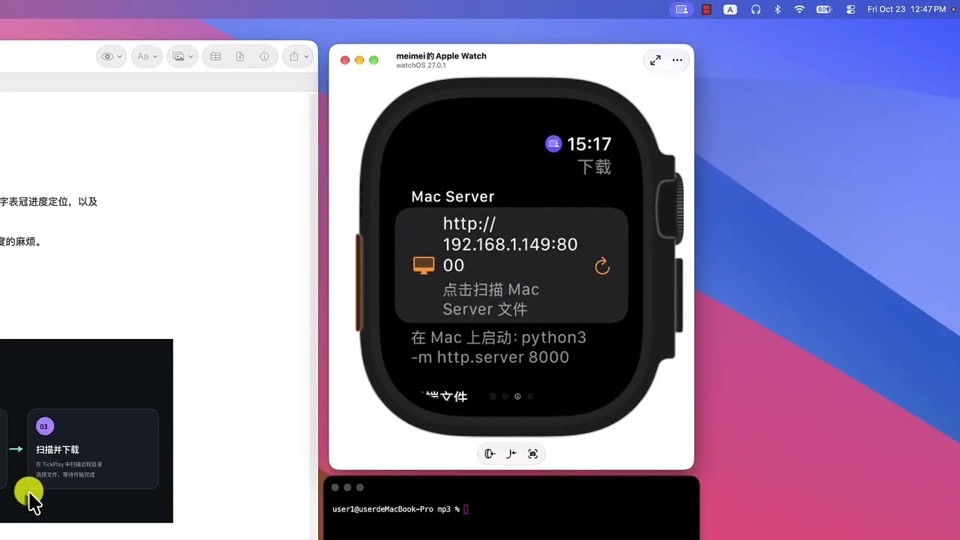
An eight-minute demonstration of TickPlay, an independent music player for Apple Watch. The useful part is the transfer: the video shows the watch running a local HTTP server, the phone or Mac opening it in a browser, and files landing on the watch over the same Wi-Fi network — no account, no cloud library. It then plays the transferred files back with the phone switched off, which is the claim the app actually rests on.
Keyframes, vector tweening and node-based compositing for motion work that is not a video edit.
Modelling, sculpting and voxel work — from a full open-source pipeline to a human figure generated from parameters.
Running several coding agents at once and keeping track of which one is working, which is waiting, and what each one changed.
Generating and upscaling images on your own machine, where the model runs locally and the prompt never leaves the Mac.
Sending a file to a phone or another computer when AirDrop will not — cross-platform, over the local network, no account.
Every chat service in one window instead of six tabs — the wrapper approach to messaging overload.
Standing up a fake endpoint so the client can be built before the server exists — and inspecting what it was actually asked for.
Managing metadata, TestFlight builds, reviews and localisation without living in a browser tab.
Removing an app along with the preference files, caches and helpers it left behind — which dragging to the Trash does not do.
Macros, hotkey daemons and scripted actions that run without you — from a menu bar script to a full window-and-file workflow.
Pairing, switching and monitoring the accessories around a Mac — keyboards across machines, AirPods, scroll wheels and phone-as-keyboard tricks.
Saving a link now and finding it in a year — with full-text search, tags and a copy that does not depend on a browser profile.
Picking a colour from the screen, converting between spaces, and getting the value into the code or the design file.
Shipping one codebase to macOS and everywhere else — the runtimes and UI layers behind most of the apps on this site.
Opening a file with a million rows and actually working in it — sorting, filtering, querying and saving without breaking the quoting.
Drawing the schema before writing it — entity relationships, forward engineering, and models that stay in sync with the database.
Reclaiming disk space from DerivedData, node_modules, Homebrew and container images — with a preview before anything is removed.
Beatmatching, cue points and a library that survives the gig — free and open-source decks alongside a sampler.
A temporary place to park files, links and text while you move between windows, apps and spaces.
Two folders side by side, keyboard-driven copying and a queue — the file manager for people who move files for a living.
Checking grammar, choosing a better word, and rewriting a sentence — inside whatever app you already write in.
Comparing two versions of a file or a folder and seeing exactly what changed, side by side.
Activating, previewing and organising a font library — plus editing the fonts themselves when nothing on the shelf fits.
Emulators and frontends for console and handheld libraries, plus the launcher that turns a Mac mini into a console.
Play a game running on another machine — a gaming PC, a console, or a Mac acting as the host.
Capturing everything, deciding what matters today, and reviewing on a schedule — the method matters more than the app.
Full toolchains with a compiler, a debugger and a project model — the step beyond an editor when the language needs more than syntax highlighting.
Changing format, stripping metadata, resizing a batch and putting the megabytes back — the unglamorous image work.
The work around Xcode: inspecting an app’s sandbox, symbolising a crash, converting Objective-C, and getting a build onto a device.
Making the phone and the tablet part of the desk — a spare screen, a keyboard target, an authentication device and a way to hand links across.
Staying connected to IRC networks — a native window, a terminal client, or a bridge into a modern chat app.
Columns, cards and a board that reflects where the work actually is — self-hosted or hosted.
Remapping modifiers, binding global hotkeys and grouping apps so one keystroke does the switching.
Passwords and API keys in a file you control — KeePass-compatible, offline, and not tied to a subscription.
Serving a site from a folder, compiling assets on save, and switching between the language runtimes a project needs.
Models that run on the machine and data that stays there — chat, dictation, search and agents without a round trip to someone else’s server.
Tools built for a manuscript rather than a note — structure, research alongside the draft, and an export that survives.
Packaging an app into a DMG or a signed installer — the last mile between a build and something a user can double-click.
Rendering a Markdown file the way a reader will see it, with the editor kept out of the way.
Measuring what is on screen — distances, colours, alignment and a pixel ruler that works over any app.
A library of your own films and shows, browsable on a television, with artwork and subtitles handled for you.
Time awareness in the menu bar: a second time zone, the week number, the minutes left in the day, or a clock on the desktop.
Turning the menu bar into a surface you design — script output, custom indicators, a pinned web page, or a new status bar entirely.
Playback controls, now-playing and synced lyrics without switching to a music app window.
One-click switches for dark mode, the notch, Bluetooth, displays and smart-home devices, without opening System Settings.
Document databases need a different interface from a SQL table — nested objects, aggregation pipelines, and a server that starts in one click.
Writing music down: scores, tablature and the practice tools that show you what the notation is supposed to sound like.
Fixing the metadata in a music library — artist, album, artwork and the acoustic fingerprint that identifies a file nobody labelled.
MySQL and MariaDB administration on macOS, including the long-running clients that are still the fastest way to browse a schema.
Live throughput, per-app bandwidth, open sockets and captured traffic — the view of what the network is doing right now.
Read and write Windows-formatted drives from macOS, from free remount tricks to paid kernel-level drivers.
Documents, spreadsheets and slides that open on someone else’s machine — the compatibility question comes before the feature list.
Changing a PDF rather than just reading it — text, pages, forms, signatures and compression.
Reading papers properly: annotations that export, a library that searches inside the text, and citations that stay attached.
Cataloguing, culling and developing a photo library locally — instead of handing it to a subscription service.
Notes that are files on disk, in Markdown or plain text, with no database between you and the contents.
Connecting to Postgres, writing queries and reading the results — from a native table browser to a server you start locally.
Browsers that block tracking by default and resist fingerprinting, including the ones built for a keyboard rather than a mouse.
Plans with dependencies, dates and resources — the step up from a task list when several people share the work.
Developing sensor data properly — demosaicing, highlight recovery and colour that survives a print.
Collecting sources, annotating them, and producing a bibliography in the right style without retyping anything.
Keeping dozens of servers, desktops and virtual machines in one list, with the right protocol chosen per host.
Disassembling, hex-editing and inspecting binaries — including the crash logs and installer packages that explain what went wrong.
Subscribing to sites and reading them on your own terms — local feeds, synced services, and typography that respects the text.
Recording what you saw and heard so you can search it later — the local-first answer to "where did I read that".
Blurring, masking or locking what is on screen during a call, a recording or a screen share.
Screensavers that are worth the electricity — aerial footage, generative scenes and a clock that renders on the desktop too.
Finding out what is installed, what is loaded into the kernel, and which configuration is weaker than it should be.
The utilities that verify, repair and tune macOS itself — permissions, logs, caches, hidden settings and hardware diagnostics.
Chat, files, meetings and docs in one workspace, for teams that have outgrown a group chat.
Keeping long-running commands, tmux sessions and several terminal windows under control instead of hunting for the right tab.
Typing a short trigger and getting a paragraph, a date, a snippet or a rewritten sentence — the shortcut layer over every text field.
Making the Touch Bar useful — haptics, an emulator for Macs that never had one, emoji, and function keys without the Fn dance.
Drawing with paths rather than pixels — illustration, lettering, SVG art and code that comes out of the drawing.
Saving video and audio from the web for offline use, from a GUI around a command-line tool to a whole-site mirror.
Cutting, grading and exporting — from a free NLE to a colour pipeline that started in a post house.
Cutting a clip without re-encoding it — the fastest path from a long recording to the thirty seconds you needed.
Virtual machines on macOS — from a GUI that runs Windows in a window to the command-line tools that boot a Linux box in seconds.
Hold a key, speak, and have the text appear at the cursor — dictation that runs locally and cleans up its own output.
Compatibility layers and game-focused wrappers that run Windows software without booting a full virtual machine.
Building a responsive page visually — layout, breakpoints and components, with clean HTML on the other side.
Seeing which channels are crowded, where the signal actually reaches, and what the link is really doing.
Set up a bootable backup on macOS — Time Machine for automatic point-in-time recovery, or a cloning tool for an exact copy you can boot from today.
Set which app opens a given file type on macOS — the Get Info method that applies to everything, the per-app approach, and how to route links to different browsers by rule.
A practical malware check on macOS — what the system already protects, the four places unwanted software hides, and how to tell a real infection from a browser notification.
Create and open ZIP, 7z, RAR and tar archives on macOS — the built-in tools, what they cannot handle, and how to make an archive someone else can open.
Turn iPhone HEIC photos into JPG or PNG on macOS — the built-in Preview and sips routes, a batch converter, and why converting loses more than people expect.
Run Windows 11 on a Mac in a VM — the ARM-versus-Intel decision that decides everything else, which apps to use, and what will not work once it is installed.
Stop macOS from sleeping during a render, a download or a transfer — the built-in caffeinate command, a menu bar toggle, and why closing the lid is a different problem.
Control what launches when your Mac starts — the Login Items list in System Settings, the launch agents and daemons it does not show, and how to tell which of them is slowing down boot.
Combine or divide PDFs on macOS with Preview's thumbnail sidebar, or with an editor when the pages need reordering, rotating or shrinking first.
Read the sensors macOS does not show you — CPU and GPU temperature, fan speed, battery health and cycle count — and know which numbers actually indicate a problem.
Connect a Mac to a shared folder over SMB, keep it mounted across reboots, and fix the two failures that account for most network drives that will not connect.
Encrypt a folder on macOS with an encrypted disk image or a vault app — what each protects against, and the one backup step that decides whether you can ever open it again.
Record your Mac screen with the built-in tool or a dedicated recorder — what each handles well, how to capture system audio, and why the file size surprises people.
Configure a VPN on macOS — the built-in client for IKEv2, Tunnelblick for OpenVPN profiles, and how to tell whether your traffic is actually going through the tunnel.
Remove a Mac app and its leftover support files the proper way — drag to Trash plus the hidden folders in ~/Library, or use an uninstaller that finds the leftovers for you.
Gatekeeper is the macOS check that decides whether an app is allowed to launch. Here is what it verifies, why an app gets blocked, and the safe way to open one anyway.
macOS reads NTFS volumes but refuses to write to them. Here is why the limitation exists, what the workarounds actually cost, and when reformatting is the better answer.
Rosetta 2 translates Intel apps so they run on Apple silicon Macs. Here is what it actually does, how to tell whether an app needs it, and when it is worth finding a native alternative instead.
Tools that move files between a Mac and an Android phone, or mirror the phone screen, compared on protocol, driver needs and whether they work over Wi-Fi.
REST, GraphQL and gRPC clients compared on where requests and collections are stored, whether they work offline, and how they fit into a Git repository.
Icon preview, generation and organising tools compared on whether they build a full icon set, preview a menu bar icon, or manage a design system.
Multitrack audio software compared on destructive versus non-destructive editing, plugin formats, and whether the free tier is a working editor or a demo.
Backup clients compared on destination, versioning model, encryption, and whether they can restore to bare metal or only to a folder.
BitTorrent clients compared on queueing, protocol support, whether they seed by default, and how much of the interface is a web UI.
Sync clients compared on where files are stored, whether you can point them at your own server, and how they handle conflicts.
Snippet managers compared on where snippets live, how they are inserted, how they are searched, and whether the store is local, self-hosted or a vendor cloud.
Multi-tool desktop apps that bundle formatters, converters, generators and inspectors into one window, compared on what runs offline and what is scriptable.
Diagram editors compared on whether they draw by hand or generate from text, how much layout they do for you, and how they export.
Painting and sketching apps compared on brush engine, whether they target illustration or animation, and how they handle layers and pressure.
Tools that show what is taking up space — tree maps, nested file lists and scan-then-delete flows — compared on how they present sizes and what they let you remove.
Menu bar resolvers and hosts-file editors compared on how they switch, whether they can benchmark, and how they restore the system default.
Tools that change Dock behaviour — locking it to one display, hiding it, replacing it, or docking windows to screen edges.
Desktop email clients compared on account model, whether they speak IMAP natively, encryption handling, and how much of the interface is a wrapped web view.
Alternatives to Finder and Spotlight compared on index, speed on large volumes, and whether they search contents or names only.
Finder extensions and right-click toolkits compared on what they add to the context menu and how much of the Finder they take over.
File transfer clients for servers compared on protocol coverage, the bookmark model, sync, and whether they double as cloud storage browsers.
Recording and converting GIFs compared on capture quality, file size control, and whether the result is a file you can still edit.
Screen-edge and hot-corner triggers compared on how many zones they support and whether they can run a shortcut or only move a window.
Proxies that intercept, inspect and modify HTTPS traffic, compared on certificate setup, scripting, and whether they run from a GUI or a terminal.
Lightweight image viewers compared on navigation model, keyboard control, format coverage, and how fast they open a folder of large files.
Journaling apps compared on entry format, where entries are stored, encryption, and how much they add on top of plain text.
Tools that stop a Mac sleeping, compared on whether they hold a plain timer, watch a condition, or fake input to do it.
Keyboard tools compared on scope — from a one-line fix like the caps-lock delay to a full remapper — and on whether they watch keystrokes to do it.
LaTeX editors compared on live preview, autocompletion depth, and whether they are dedicated editors or Markdown editors with math support.
Players for a music collection on disk compared on format support, library handling, lyrics, and whether they stream by default.
On-demand and persistent scanners compared on whether they watch for installs or scan when asked, what they detect, and what they cost.
Menu bar calendars compared on which calendars they read, whether they can create events, and how much of the month they show before you have to open Calendar.
Menu bar trackers for stocks, crypto, sports and watchlists, compared on what they cover, how often they refresh, and whether they need an account.
Mind mapping tools compared on layout freedom, how much a node can carry, and whether a map can be turned into an outline and back.
Third-party mouse and trackpad tools compared on what they fix — scrolling, acceleration, button mapping and gestures — and how much of macOS they override.
Menu bar and notch companions compared on what they hang around the notch, whether they can hide it, and how much they watch to do it.
Menu bar and hotkey tools that pull text out of images and PDFs, compared on where recognition runs, what they do with the result, and whether they batch.
Outliners compared on how deeply nodes nest, whether the text lives in Markdown files, and how well they support collapse, hoist and export.
Menu bar mixers that control volume per application rather than per output device, compared on what they route and whether they can record.
Plain text editors compared on encoding handling, behaviour on large files, and whether they are GUI apps, terminal apps or both.
Focus timers compared on where the timer lives, what it does at the end of an interval, and whether it can drive the system Focus mode.
Menu bar proxy clients for Shadowsocks, VLESS and subscription links, compared on which core they run, how subscriptions update, and what they expose for rules.
Desktop GUIs for Redis, Kafka and directory servers compared on what they can change, what they only read, and whether they need a live connection to work.
Regex testers compared on how they explain a match, which flavour they target, and whether they generate code or only report matches.
Throwaway note pads compared on how fast they open, whether the note survives a reboot, and whether it lives on the desktop or in the menu bar.
Menu bar tools that change what is on screen — colour temperature, greyscale, dimming and focus states — and how each relates to Night Shift.
Screen recorders that edit while they capture — auto-zoom, cursor emphasis, motion — compared on how much of the final video they produce for you.
Terminal-based SSH clients compared on connection management, key handling, agent integration and whether they also do SFTP.
Terminals built to run AI coding agents in parallel, compared on session persistence, how many agents you can supervise at once, and whether they are general-purpose terminals too.
Automatic time trackers compared on what they record, where the data is stored, and whether you can invoice from it.
TOTP authenticators, and the password managers that also do TOTP, compared on where the secret is stored, how codes are backed up, and whether they can be exported.
Tools that replace the static desktop picture — video wallpapers, web pages as backgrounds, dynamic wallpapers and per-display views.
Webcam utilities compared on whether they mirror, record, overlay onto a recording, or simply tell you the camera is in use.
Tools that replace macOS Command-Tab — search, previews, gestures and switching to a window rather than to an app.
Wireframing and prototyping tools compared on fidelity — from low-fidelity sketches to interactive, conditional prototypes — and on where the file lives.
Utilities that clean up after Xcode or drive the iOS Simulator, compared on what they delete and whether they can script the simulator.
Audio utilities for macOS compared on what they actually do — capture, route, process or convert a file — whether they install a virtual driver, and what happens when a device is unplugged.
Battery tools for macOS compared on what they actually do — limit the charge, measure the drain, report the health, or keep the Mac awake.
Data recovery and disk repair tools for macOS compared on whether the volume still mounts, and whether the job is recovering files or repairing the directory.
SQL and NoSQL clients for macOS compared on which engines they reach and whether they open a file on your disk or connect to a server.
External display utilities for macOS compared on hardware brightness control versus an overlay, HiDPI scaling, and OLED panel care.
Download managers for macOS compared on what they download — video from a site, or files over HTTP, FTP and BitTorrent — and how they integrate with the browser.
Ebook readers and library managers for macOS compared on the formats they open, how they handle DRM, and whether notes come out searchable.
Quick Look extensions for macOS, grouped by the file type each one covers — Markdown, CSV, source code and torrent files.
Remote access and remote support tools for macOS compared on who connects to whom, and whether the session passes through a vendor relay or your own server.
Translation tools for macOS compared on where the text comes from — a selection, a screenshot, or system audio — and whether it leaves your machine.
Dictation and transcription tools for macOS compared on whether the words go to your cursor or into a document, and whether the audio leaves the machine.
Desktop AI chat clients for macOS compared on which models they reach, whether they store your conversations, and local model support.
AI-assisted development tools available on macOS compared on where the model runs, what it can see, and whether it is an editor or a plugin.
Compression and extraction tools for macOS compared on archive formats supported, password handling and Finder integration.
Clipboard history tools for macOS compared on history depth, search, sync and how they handle sensitive content.
Text editors and IDEs for macOS compared on what they are built for: modal editing, extension ecosystems, native performance and AI assistance.
Container and VM tooling for macOS compared on the virtualisation layer, startup cost and whether it needs a paid licence for commercial use.
Finder replacements and enhancements for macOS compared on what they add to the built-in file browser.
Outbound firewalls and network monitors for macOS compared on rule granularity, whether they can block per-connection, and their cost.
Genuinely free macOS applications — no trial, no locked features — grouped by what they do.
Graphical Git clients for macOS compared on merge conflict handling, history visualisation and price.
Image optimisation tools for macOS compared on whether they re-encode, strip metadata, and how much they let you verify before overwriting.
Raster image editors for macOS compared on layer support, colour management, file formats and one-off purchase versus subscription.
Keyboard launchers for macOS compared on extension model, scripting, clipboard history and how far they go beyond opening apps.
Markdown editors for macOS compared on live preview, syntax extension support and whether they are tied to a sync service.
Menu bar organisers for macOS compared on how they hide, group and reveal status items — and what they cost you in accessibility.
Desktop chat clients for macOS compared on protocol, encryption and whether the Mac app is a first-class citizen or a wrapped web view.
Note apps for macOS compared on storage format, sync model and how hard they make it to leave — plain files versus proprietary databases.
Open source applications for macOS, grouped by what they do, with the licence each one ships under.
Password managers for macOS compared on vault model, sync, browser integration and whether your data is end-to-end encrypted or recoverable by the vendor.
PDF utilities for macOS compared on editing, merging, form filling and whether they run locally or upload your document.
Screen capture tools for macOS compared on annotation, scrolling capture, video recording and where your captures end up.
System monitoring tools for macOS compared on what they surface in the menu bar and how much detail they expose on demand.
A comparison of macOS terminal emulators — from GPU-accelerated renderers to scriptable workhorses — with what each one actually does differently.
Task managers for macOS compared on GTD support, sync, natural language input and one-off versus subscription pricing.
Vector and interface design tools for macOS compared on file format, collaboration model and whether the app works offline.
Video transcoding tools for macOS compared on codec support, hardware acceleration and whether they are a GUI over a command-line encoder.
Media players for macOS compared on codec coverage, subtitle handling and whether the player can be driven from the command line.
VPN clients and mesh networks for macOS compared on protocol, whether the client is open source, and what the provider can see.
The main macOS browsers compared on engine, privacy defaults, extension support and how much of your browsing they keep to themselves.
Window management on macOS compared: keyboard-driven tiling, snapping, and the difference between a window manager and a window rearranger.
A practical comparison of Mac cleaner apps that help you analyze disk usage, remove junk files and reclaim storage space on macOS.
Clear app and system caches on macOS safely — manually via ~/Library/Caches or with a Mac cleaner that previews what it removes.
Find and remove duplicate files on macOS using Finder Smart Folders, or a duplicate file finder that compares content instead of just file names.
Find the biggest files on your Mac using Finder search, the Storage settings, Terminal commands or a dedicated disk space analyzer.
Free up storage on your Mac by removing large files, clearing caches, deleting unused apps and analyzing disk usage with the right tools.
Mac System Data is a catch-all storage category for caches, logs, snapshots and support files. Learn what it contains and how to safely shrink it.
Seventeen minutes on twelve settings, arranged around three worries rather than around the Settings app's own layout: keeping the battery healthy, keeping the phone from being a nuisance or a liability, and keeping the screen readable. The order is deliberate — the charge limit gets four minutes because it is the one that changes how the phone is used every day, and the last three are the settings nobody opens until the day they matter.
A fifteen-minute walkthrough of getting a photo library that lives in iCloud onto a drive you own. It works through both routes — pulling the originals down through iCloud Photos in a browser, and letting the Photos app hold the library locally first — then shows what the resulting files look like on disk and how to tell a complete copy from a partial one. Long, methodical, and aimed at someone who has never opened iCloud on the web.
Four apps in under seven minutes, and the first one takes more than half the runtime. Mole is a native maintenance tool — cleanup, app management, disk analysis and system monitoring — and the video works through it screen by screen. Atoll turns the notch into a Dynamic Island-style hub. DeskMinder and Typeless follow, with no page on this site. Mole and Atoll do have pages, so they are the two linked below; the other two are named because the video names them.
A five-minute, four-app roundup that moves from a general capture tool to three narrow utilities: Snapzy for screenshots, screen recording and annotation; BLEUnlock for unlocking a Mac with a Bluetooth device already paired to it; WhatCable for finding out which cable or port is holding a connection back; and AndroidLink for reaching an Android phone from the Mac. Snapzy is the only one of the four with a page on this site, so it is the only one linked below — the others are named because the video names them, not because anything about them has been checked here.
Eighteen minutes, ten apps, and a structure that is closer to a tour of the Mac's own gaps than to a best-of list: one app per job — snapping windows, managing them, holding a file mid-drag, moving it to another device, watching the machine, cleaning it, changing the wallpaper, using the camera as a mirror, taming the menu bar, and replacing Launchpad. Seven of the ten have a page on this site and are linked below; Blip, Wallspace and HandMirror do not, so they are named here because the video names them and nothing about them has been checked.
A two-and-a-half-minute annual roundup: apps the creator says he used through 2025, cut together as a short list rather than a set of reviews. At this length there is no room for testing methodology, so treat it as a set of names to look up elsewhere.
Nineteen minutes on ten settings, each one something the creator actually runs rather than a list of interesting switches. The useful ones are the hidden ones: three-finger drag buried in Accessibility, hot corners made safe behind a modifier key, the battery percentage Apple Silicon hides, and the Sonoma default that makes a click on the desktop hide every window.
An eight-and-a-half-minute explanation of why a Mac refuses to open a downloaded app, and what each refusal actually means. It separates the layers that are usually lumped together: the quarantine flag on a downloaded file, Gatekeeper's policy, notarisation by Apple, and the signature on the bundle. The last third moves to the terminal, where the flag can be inspected and cleared, which is the part worth watching rather than copying blindly.
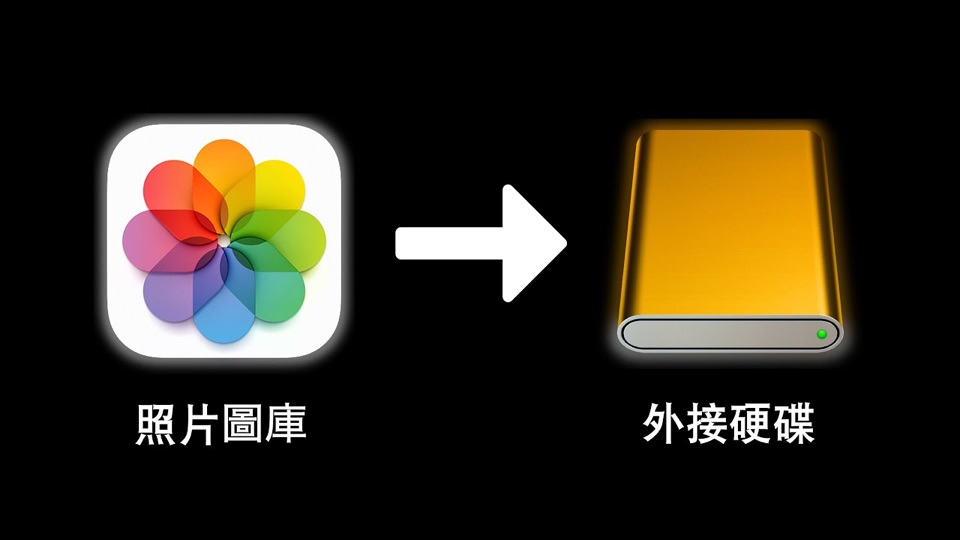
Four minutes to move a 200 GB Photos library onto an external drive and keep using it as if nothing changed. The method is the one that actually works: format the drive first, copy the library package across, then tell Photos which library to open by holding Option at launch. It closes with the one failure everyone hits afterwards — Photos saying it cannot find the library — and the fix, which is that the drive is not plugged in.
Five minutes on Terminal for someone who has never opened it: three ways to launch it, how to switch between bash and zsh with chsh, where the window's font and colours live, and about twenty commands grouped by what they act on — the clock, the path, folders, files. It is plain and unhurried, and the parts that matter most are the ones it shows going wrong.
Fourteen minutes of things the Mac already does: dragging a file onto a Dock icon to choose the app that opens it, holding Space to move a screenshot frame, pasting as plain text with ⇧⌥⌘V, merging two PDFs in Preview by dropping one into the other's sidebar, and a dozen more. Nothing is installed at any point in the video, which is the whole argument — the shortcuts are already on the machine.
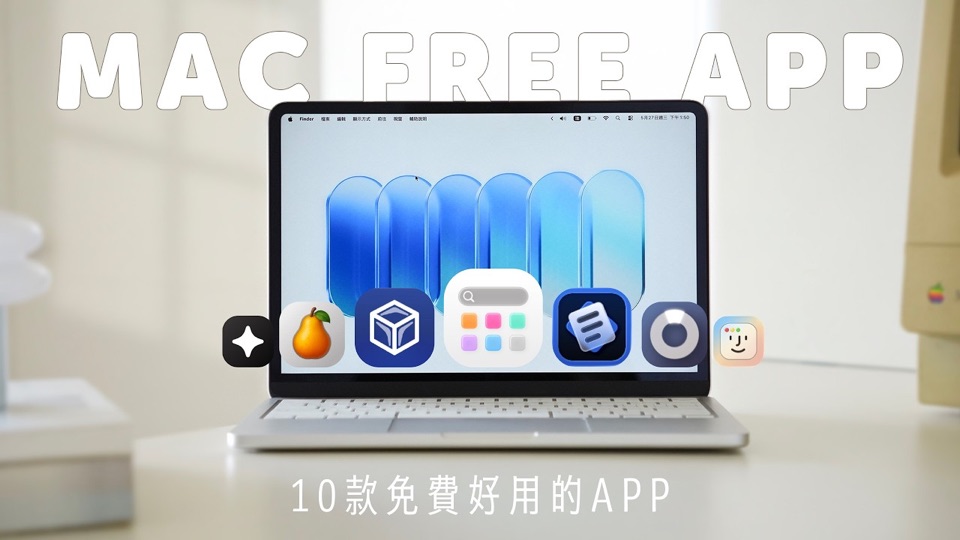
Six and a half minutes, five apps, and a rule that shapes the whole list: none of them costs anything. The selection is deliberately ordinary rather than clever — snapping windows, reading a calendar without opening one, putting a password on a file, scheduling dark mode, hiding menu-bar clutter — and the video spends most of its time on the two that need a settings pane explained. Only Itsycal of the five has a page on this site, so it is the only one linked below; the others are named because the video names them, not because anything about their current state has been checked here.
Showing 12 of 227 · 212 guides · 15 videos
7 apps published by Nuanyue for macOS, iPhone, iPad and Apple Watch. Version, price and platform below come from each App Store listing and the official product website.

Local 4K video player for macOS
A local video player for macOS that opens MKV, MP4, AVI, WebM, TS, FLV and MOV files, with hardware-accelerated 4K HDR playback and M3U playlist support.
Batch image compression that stays on your Mac
A native macOS image compressor built for batch work. It compresses a single image or an entire folder tree on-device, converts between output formats and exports the results without uploading anything.
Compress, convert and question PDFs on-device
An on-device PDF toolkit for iPhone and iPad. It compresses a document to a target file size, converts between PDF, images and text, and answers questions about a document using a private on-device assistant.
A right-click toolkit for Mac files
A Finder context-menu toolkit for macOS. It puts common file actions — new-file templates, batch rename, quick copy and move destinations, duplicate finding and disk-space analysis — into one right-click menu.

Archive utility with 14 output formats
A native macOS archive utility. It compresses to 14 formats including 7z, ZIP, TAR, GZIP, XZ, Brotli and Zstandard, extracts RAR and other common archives, and supports AES-256 encrypted 7z, ZIP and DMG files.

System cleanup and disk optimisation
A macOS cleaner that scans for system junk, app caches, logs and browser traces, surfaces the largest files on disk, and detects duplicate files and similar photos so each item can be reviewed before removal.

Offline music and video player for Apple Watch
A standalone media player for Apple Watch that stores your own audio and video on the watch, plays lossless FLAC, OGG and Opus alongside MP3 and M4A, and scrolls synchronized LRC lyrics — with no account, no cloud and no iPhone needed while you listen.
These are first-party apps published by Nuanyue, the publisher of this directory — shown as a product showcase rather than independent editorial picks. Prices are the US App Store prices. Facts last checked . See how facts are sourced and graded →

Encrypted password and passkey vault with autofill and breach monitoring.
1Password stores passwords, passkeys, secure notes and payment details in one encrypted vault on macOS, with autofill into browsers and native apps.

Launcher and automation tool with workflows and snippets.
A launcher and automation tool for macOS with hotkeys, keyword search, clipboard history, text snippets and a visual workflow editor.
Workspace-style browser, now in maintenance mode.
A Chromium-based browser with a workspace-style sidebar, Spaces and Profiles — now maintained with Chromium updates only.
Mac maintenance suite: cleanup, uninstall, malware scan.
A macOS maintenance suite from MacPaw that removes junk files, uninstalls apps with their leftovers, finds duplicates and scans for malware.
Visual disk usage analyser with a one-time licence.
A disk usage analyser that scans a Mac's storage and shows what is using space as an interactive ring chart, so you decide what to delete.

Collaborative interface design, prototyping and handoff.
A browser-based interface design tool with a Mac desktop app, covering vector design, prototyping, whiteboarding, slides and developer handoff.
Terminal emulator with split panes, search and shell integration.
A terminal emulator for macOS that adds split panes, search, profiles, shell integration and a large set of configuration options on top of Terminal.
Analyze storage, clean unnecessary files and keep your Mac organized.
Neatwise is a macOS utility that helps you analyze storage, find unnecessary files and keep your Mac clean and organized.

Local-first Markdown notes, with optional paid sync.
A local-first note-taking app that keeps your notes as plain Markdown files in a folder you own, with optional paid sync and publishing.

Keyboard launcher with extensions, clipboard history and AI.
A keyboard-driven launcher for macOS that runs commands and extensions, with clipboard history, window management, snippets and an optional AI tier.

Free MIT-licensed code editor with a large extension marketplace.
Microsoft's free, MIT-licensed source code editor for macOS, with a large extension marketplace, built-in Git and integrated debugging.
Free open-source player for most media formats.
A free, open-source media player from VideoLAN that plays most audio, video and streaming formats without extra codec packs.
Essential Mac utility apps that handle everyday tasks such as cleaning, clipboard management, window organization and system maintenance.
Mac apps that help you write, plan, take notes, manage tasks and stay focused throughout the workday.
Code editors, IDEs, terminal apps, API clients, database tools and other software developers rely on when building for macOS and beyond.
Design tools for Mac covering UI design, prototyping, screen recording, screenshot annotation and asset management.
Mac apps for organizing files, finding duplicates, locating large files, managing cloud storage and keeping folders under control.
Password managers, encryption tools, firewalls and privacy utilities that keep your Mac and your data safe.
Audio and video apps for Mac: players, editors, converters, recorders and music production tools.
Network utilities for Mac: VPN clients, proxies, network analysis, download managers and file transfer tools.
Apps that monitor, tweak and extend macOS itself: menu bar tools, window managers, Finder extensions and system information utilities.
Mac cleaner apps help you find unnecessary files, analyze disk usage, uninstall apps completely and reclaim storage space.
Set up a bootable backup on macOS — Time Machine for automatic point-in-time recovery, or a cloning tool for an exact copy you can boot from today.
Remove a Mac app and its leftover support files the proper way — drag to Trash plus the hidden folders in ~/Library, or use an uninstaller that finds the leftovers for you.
A practical comparison of Mac cleaner apps that help you analyze disk usage, remove junk files and reclaim storage space on macOS.
Clear app and system caches on macOS safely — manually via ~/Library/Caches or with a Mac cleaner that previews what it removes.
Find and remove duplicate files on macOS using Finder Smart Folders, or a duplicate file finder that compares content instead of just file names.
Find the biggest files on your Mac using Finder search, the Storage settings, Terminal commands or a dedicated disk space analyzer.
Every listing is organized by category, linked to its official source and regularly reviewed — so you can find the right app faster.
Turns the MacBook notch into a control surface for music, calendar, files and AI agent sessions.
Turns the MacBook notch into a control surface for music, calendar, files and AI agent sessions.
i3-like tiling window manager, configured in plain text.
An i3-like tiling window manager for macOS that lays windows out in a tree, emulates its own workspaces and never asks you to disable SIP.

Charge limiter and battery health controls for MacBooks.
Sets a charge limit on a MacBook so the battery spends less time sitting at 100%, with discharge, heat protection and calibration modes on top.
CLI for automating iOS Simulators via accessibility APIs and HID input.
AXe is a command-line tool for driving iOS Simulators through Apple's private accessibility APIs and HID input, so a script can tap, type, drag and screenshot a running simulator without a UI testing target.

Alerts whenever anything is installed persistently.
Watches the places macOS software installs itself to run at login or boot, and asks before a new one is allowed to stay.

Clears derived data, archives and simulator caches left behind by Xcode.
Cleaner for Xcode removes the derived data, archives, simulator caches and deprecated support files that Xcode leaves behind, reclaiming disk space on a Mac used for development.
Clipboard history and snippets, reachable by keyboard.
Clipboard history and snippets in the menu bar, with keyboard shortcuts for each, from the lineage of ClipMenu.
Open-source audio player with very broad format support.
A free, open-source audio player that opens almost any format you throw at it, including game music and tracker modules.
Offline toolbox of small developer converters and formatters.
A macOS port of DevToys: a single offline window holding the small converters, formatters and generators developers keep opening browser tabs for.
The apps other listings point at most often — ranked by how many entries in this directory name them as an alternative, a competitor or a companion.
Video transcoder for converting media to modern formats.
Video transcoder for converting media to modern formats.
Free MIT-licensed code editor with a large extension marketplace.
Microsoft's free, MIT-licensed source code editor for macOS, with a large extension marketplace, built-in Git and integrated debugging.
Vector design studio in Affinity, now free from Canva.
Vector design studio inside Affinity, the free professional creative application from Canva that merged the former Designer, Photo and Publisher apps into one program.
Privacy-first Chromium browser with ad and tracker blocking built in.
Chromium-based web browser that blocks ads, trackers and cookie prompts by default, with an independent search engine and an optional VPN.

Mozilla's open-source browser with its own engine.
Mozilla's free and open-source web browser for macOS, with an independent rendering engine and its own extension ecosystem.
Terminal emulator with split panes, search and shell integration.
A terminal emulator for macOS that adds split panes, search, profiles, shell integration and a large set of configuration options on top of Terminal.
This is a measure of the directory's own graph, not of traffic: Nuanyue runs no analytics, sets no cookies and counts no clicks, so there is no visit data behind this ranking — only the relationship links editors have asserted between listings. Ties are ordered by name. How Nuanyue reviews software →
Every clip links out to the creator’s own upload — the index keeps the runtime, the video type and the date.